Quick Reference: Methods at a Glance
| Method | Popular Tools | Best Use Cases |
|---|---|---|
| AI-Powered Tools | Leawo Photo Enlarger, Topaz Photo AI, Let’s Enhance | Quick batch processing, restoring old photos |
| Photo Editing Software | Adobe Photoshop, Lightroom | Professional photography, print production |
| Online Upscalers | Waifu2x, Fotor, Pixlr | Beginners, no-install quick fixes |
| Mobile Apps | Remini, PhotoAI | Social media content, on-the-go edits |
1. Introduction
You have just taken the perfect shot of a candid family moment, a product photo for your online store, or a screenshot destined for a marketing banner. But when you open it on a larger screen or try to print it, a blurry, pixelated mess stares back at you. Sound familiar?
Image resolution describes the amount of detail a digital image holds, typically expressed in pixels per inch (PPI) or total pixel dimensions (e.g., 1920 × 1080). When that number is too low, the image appears soft, blocky, or unprofessional the moment it is stretched beyond its original size.
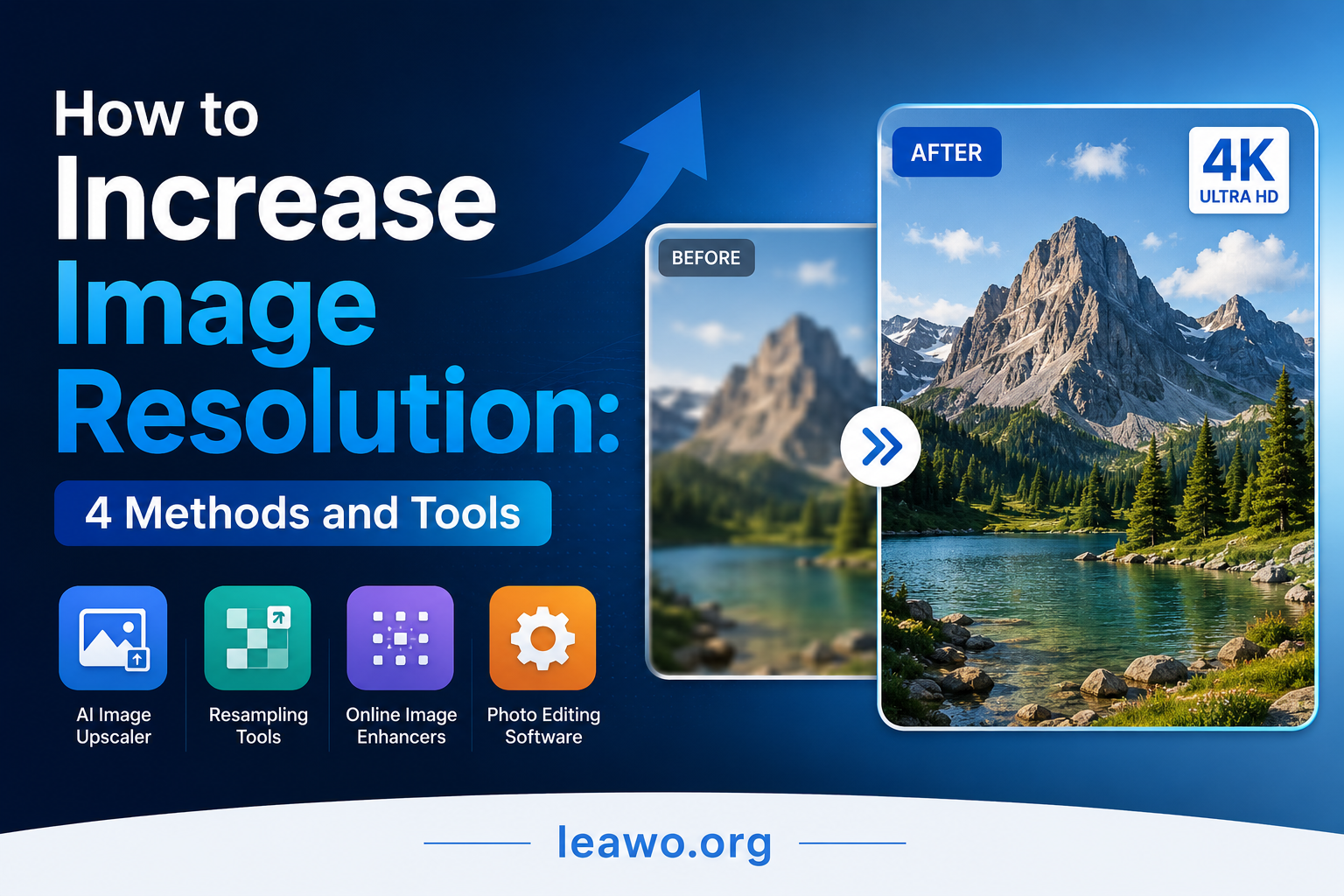
Fortunately, there are reliable ways to increase image resolution without starting from scratch. Whether you prefer the speed of AI, the precision of professional software, the convenience of a browser-based tool, or the portability of a smartphone app, this guide covers the four best methods available today complete with step-by-step instructions and honest pros and cons for each.
2. Four Methods to Increase Image Resolution
Method 1: Increase Image Resolution with AI-Powered Tools
Artificial intelligence has transformed image upscaling from a guessing game into a remarkably accurate science. Traditional upscaling simply stretched pixels and filled the gaps with blurry averages. AI upscaling, by contrast, analyses millions of images during training and learns to predict with impressive accuracy exactly what fine details should look like at a higher resolution. The result is sharper edges, cleaner textures, and far less of that telltale halo effect you get from older methods.
Best Use Cases
- Quick, one-click processing of large image batches
- Restoring old or damaged photographs
- Upscaling product images for e-commerce listings
- Enlarging images for print without a high-resolution original
Popular AI Upscaling Tools
- Leawo Photo Enlarger: A dedicated AI photo enlarger that upscales images up to 800% while preserving fine detail and natural colour. Its intuitive interface makes it accessible to beginners and professionals alike.
- Topaz Photo AI combines upscaling, sharpening, and noise reduction in a single workflow, making it a favourite among photographers who want maximum quality control.
- Let’s Enhance: A browser-based AI tool that delivers clean upscaling with no software installation required, though it works best on portraits and landscapes.
Step-by-Step: How to Use Leawo Photo Enlarger
- Download and install Leawo Photo Enlarger from the official website and launch the application.
- Click “Add Photo” or drag and drop your image directly into the workspace.
- Select your desired enlargement scale options typically range from 2× up to 8× the original size.
- Choose your preferred AI enhancement model. For photographs, the “Photo” model generally yields the most natural results.
- Preview the before-and-after comparison on the right panel to verify the output quality meets your expectations.
- Set your output folder and file format (JPEG or PNG), then click “Enlarge” to start processing.
- Once complete, open your output folder to find the upscaled image, ready to use.
Pros and Cons of AI Image Upscaling
- Pros: Extremely fast processing, minimal technical knowledge required, excellent detail recovery, great for batch workflows
- Cons: Paid plans required for the highest resolution outputs, AI occasionally over-smooths fine textures, results can vary with heavily compressed source images
Method 2: Increase Image Resolution with Photo Editing Software
When precision matters above all else, professional photo editing software gives you granular control that fully automated tools simply cannot match. This approach is particularly valuable in professional photography workflows, print production, and any scenario where a trained eye needs to validate and refine the result by hand.
Best Use Cases
- Professional photography and studio retouching
- Large-format print projects (posters, banners, billboards)
- Situations requiring manual sharpening or custom adjustment layers
- Workflows already built around Adobe Creative Cloud
The Industry Standard: Adobe Photoshop
Adobe Photoshop remains one of the most powerful tools for manually increasing image resolution. Its “Image Size” dialog has evolved significantly over the years, and the “Preserve Details 2.0” algorithm introduced in recent versions delivers AI-assisted upscaling directly within the software meaning you don’t need a separate tool for good results.
How to Use Photoshop to Increase Resolution
- Open your image in Photoshop via File > Open.
- Navigate to Image > Image Size to open the resolution dialog.
- Make sure the “Resample” checkbox is ticked and the chain link icon between width and height is locked, so proportions are maintained.
- In the resampling drop-down menu, select “Preserve Details 2.0” for the best AI-enhanced upscaling quality, or “Bicubic Smoother” for a more traditional approach.
- Enter your target resolution (for print, 300 PPI is the industry standard; for web, 72–96 PPI is sufficient).
- Use the “Reduce Noise” slider that appears with Preserve Details 2.0 to fine-tune the result.
- Click OK, then use Filter > Sharpen > Smart Sharpen if the image needs additional crispness.
- Save your file via File > Export > Export As and choose your preferred format.
Pros and Cons of Manual Editing
- Pros: Maximum creative control, industry-standard results, built-in sharpening and noise reduction tools, no extra cost if you already have a subscription
- Cons: Steep learning curve for beginners, subscription-based pricing, slower than automated tools for large batches
Method 3: Increase Image Resolution with Online Image Upscalers
Not everyone wants to install software or navigate a learning curve. Online image upscalers offer a refreshingly simple alternative: open a browser, upload your file, and download the result in minutes. No account, no installation, and no cost for basic use making them the go-to choice for occasional users and absolute beginners.
Best Use Cases
- One-off upscaling jobs where installing software is not worth the effort
- Users on shared or managed computers without admin rights
- Quick resizing for social media before posting
Popular Online Upscaling Tools
- Waifu2x: Originally developed for anime-style artwork, Waifu2x now handles photographs effectively too. It is entirely free and open-source, with no sign-up required.
- Fotor: A polished, feature-rich online editor that includes an AI upscaler alongside background removal, colour correction, and filters.
- Pixlr: A well-established browser-based editor with upscaling capabilities, suitable for users who want light editing alongside resolution improvements.
Typical Workflow
- Open the tool in your browser no account needed for most basic operations.
- Upload your image by clicking the upload button or dragging the file into the workspace.
- Select your desired scale factor (commonly 2× or 4×).
- Wait for the tool to process the image (usually 10–60 seconds).
- Preview the result and download the upscaled file to your device.
Advantages and Limitations
- Advantages: Zero installation, free for basic usage, accessible from any device with a browser, ideal for occasional use
- Limitations: File size caps on free plans, privacy concerns with uploading sensitive images, dependent on internet speed, fewer customisation options than desktop software
Method 4: Increase Image Resolution on Mobile
Smartphones are where most of us take and share photos, so it makes sense that mobile apps for increasing image resolution have grown increasingly powerful. Modern apps use on-device or cloud AI to upscale photos in seconds, making them perfect for anyone who wants to fix a blurry image without sitting down at a computer.
Best Use Cases
- Enhancing photos before posting to Instagram, TikTok, or other social platforms
- Quick fixes on old photos discovered in your camera roll
- Portrait enhancement and facial detail recovery
- Travel photography on the go
Leading Mobile Apps
- Remini (iOS & Android): Purpose-built for photo enhancement, Remini uses deep learning to restore facial details and sharpen textures. It is one of the most downloaded photo enhancers on the App Store.
- PhotoAI (iOS & Android): Combines AI upscaling with portrait retouching, background enhancement, and one-tap restoration. Particularly effective for older or low-quality photographs.
Pros and Cons of Mobile Upscaling
- Pros: Always in your pocket, fast one-tap processing, great for social media-ready outputs, intuitive interfaces require no technical expertise
- Cons: More limited editing controls compared to desktop software, free tiers often include watermarks or processing caps, less suitable for large print-ready files
3. Frequently Asked Questions
1. Can AI really improve image resolution?
Yes and modern AI tools do it remarkably well. Instead of simply stretching pixels, AI upscalers like Leawo Photo Enlarger have been trained on millions of image pairs, learning to reconstruct fine details that are genuinely missing from the original file. The results are not perfect; no upscaler can fully recreate information that was never captured but for most everyday use cases, the improvement is striking.
2. Can I increase image resolution for free?
Absolutely. Tools like Waifu2x are completely free and open-source. Fotor and Pixlr offer free tiers with reasonable limits. On desktop, GIMP is a powerful free alternative to Photoshop. For more advanced AI upscaling on a regular basis, a paid plan is worth considering but free tools are more than adequate for occasional needs. You can also explore a curated list of the best image upscalers to compare free and paid options side by side.
3. Is Photoshop good for increasing image resolution?
Yes especially since Adobe introduced the “Preserve Details 2.0” resampling algorithm. For professional photographers and designers who are already working inside Photoshop, it is a highly capable upscaling option. That said, dedicated AI tools like Leawo Photo Enlarger or Topaz Photo AI tend to produce sharper results with less manual fine-tuning required, particularly on challenging images.
4. How long does it take to upscale an image?
Most AI tools process a standard image in seconds to a few minutes, depending on your hardware and internet connection. Leawo Photo Enlarger, for example, typically completes a 2×–4× upscale in under a minute. Online tools are similarly fast, provided your connection speed is reasonable. Photoshop’s processing time scales with the size of the output file and your computer’s specifications.
4. Conclusion
Image resolution matters more than most people realise. A low-resolution image can undermine a professional portfolio, reduce print quality, or make a social media post look amateurish. Thankfully, the tools available today from sophisticated AI applications to quick mobile apps make it entirely possible to recover and enhance image quality without a photography degree.
For the vast majority of users, the best starting point is an AI-powered desktop tool like Leawo Photo Enlarger. It combines ease of use with impressive output quality, and a quick round of post-processing sharpening in Photoshop or GIMP can push the results even further if needed.
To quickly recap the four methods covered in this guide:
- AI-Powered Tools — Best for speed, automation, and quality in most scenarios
- Photo Editing Software — Best for professionals who need full creative control
- Online Upscalers — Best for quick, no-install fixes from any device
- Mobile Apps — Best for on-the-go enhancement and social media content
Whichever method fits your workflow, there has never been a better time to rescue your low-resolution images. Try the tools mentioned here many offer free trials and see the difference for yourself. For a broader overview of the leading options in the market, this roundup of the best image upscalers is an excellent next step.